The Inception Pipeline Part 3: One Template, Multiple AWS Accounts
This series (2018) uses CodeCommit, which AWS has closed to new customers. The pattern lives on: see our CDK-based Cross-Account Inception Pipeline blog for a current implementation.
What's The Problem
Welcome back to the 3rd instalment in the "Seeds of Inception" series, where we build upon Part 2 by setting our pipelines to 'defrost'. By this I mean solving the snowflake environment issue that plagues software development; where each environment is unique and special and just a little bit different from all the others in the DEV to PROD chain.
Getting down to the guts of it, I'll demonstrate one way to deploy your single aws_infrastructure.yml template across multiple AWS Accounts. All from the comfort of your very own Inception Pipeline
What Technologies Are We Going To Use
What Are The Prerequisites
To get started, you will need the following:
- Having Part 2 installed.
- Having a second 'production' AWS Account, and enough permissions to create a pipeline.
How It All Works
Since a picture is worth a thousand words (and I'm feeling too lazy to try writing up a long and boring blob of text) checkout the diagram below:
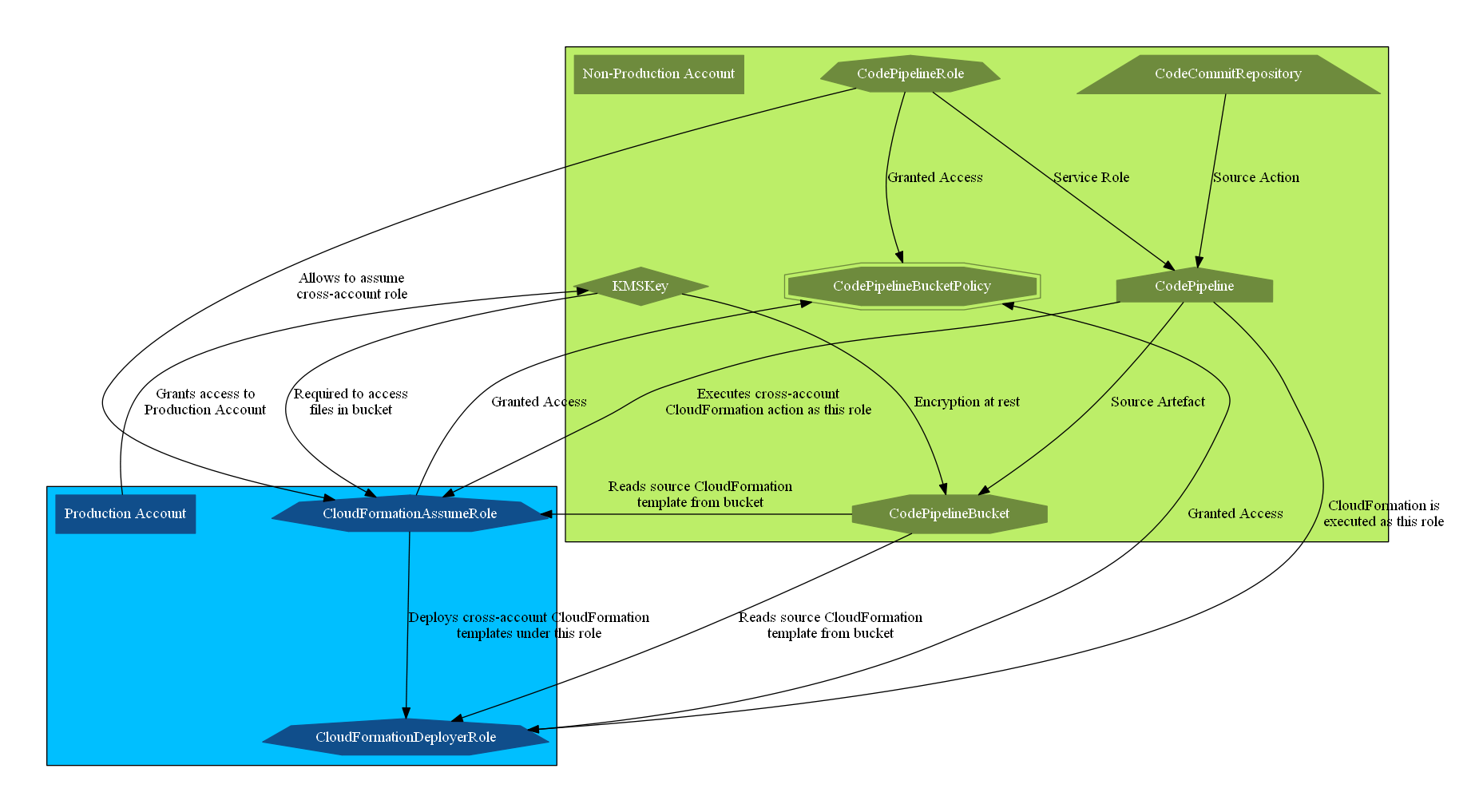
In essence, there are three IAM roles in play, and shared access to a non-production S3 bucket and KMS key:
- The
CodePipelineRolewhich is used to execute the CodePipeline pipeline. - The
CloudFormationAssumeRolewhich is assumed byCodePipelineRoleto execute the CloudFormation deployment action. Note that this is in the production account. - The
CloudFormationDeployerRolewhich is assumed byCloudFormationAssumeRoleto deploy the contents ofaws_infrastructure.yml
To glue all the roles together, there is a cross-account-shared KMS key to allow encrypting and decrypting of the build artefacts.
Honesty time, I lost countless hours trying to get production to see non-production files as all I kept getting were S3 403 errors. Turns out it wasn't the IAM permissions, just production needing to decrypt the non-production files. The lesson here kids is that the KMS key is important!
Where Do I Get The Seed Files
All the files are in the Part 3 branch in the GitHub repository. Inside you'll find a dedicated directory for your non-production and production accounts.
What Are The Files
Rather than repeat what every file is, I'll just talk about the really interesting ones:
- Non-Production Account
- aws_seed.yml - Contains the production Stage and CloudFormation deployment action. The production action is essentially the same as the non-production action, just with a different parameter json file and set of roles.
- aws_infrastructure_production.json - This contains the production infrastructure values.
- Production Account
- aws_seed.yml - Contains the two roles which get assumed from the non-production account to carry out the CloudFormation deployment.
Taking It For A Spin
If you've been following along with these posts then it is a simple as diffing the files and copying across the relevant bits for aws_seed.yml and any of the other files you're missing.
If not (I'll try not to judge you too much), you should be able to open a command prompt, change directory into either the non-production or production folder and then just follow the steps from Part 1
Wrapping Up
Well, that's it for another month. Tune in again next month for Part 4!